
Using Narratron as a Virtual Tabletop (VTT)
Narratron Buddy is designed to combine an AI narrative assistant with the interactive freedom of a collaborative virtual tabletop (VTT). The Gamemaster (GM) leads the table and controls the story, while Narratron acts as a multimodal co-pilot: generating overhead tactical battlemaps, scoring ambient audio, logging player rolls, and providing narrative assistance when called upon.
While traditional VTTs require manual map imports, complex grid calibrations, and heavy character sheet engines, Narratron takes a lightweight, agentic approach:
- Character sheets live outside Narratron: Sheets remain in specialized external tools (e.g. D&D Beyond, Demiplane, or Pathbuilder) and send dice rolls into Narratron chat via browser extensions like Beyond20.
- Tactical battlemaps use scenes: Set up a tactical map as a scene before play by uploading it or generating it ahead of time, or generate a new 2D overhead battlemap with a tactical grid live during the session.
- The Gamemaster directs pacing via the Action Wheel: A radial gesture HUD lets the GM lock or advance maps, control background music, and direct the audiovisual atmosphere with split-second mouse gestures.
- Miniatures and tokens are placed using Stamps: Both the GM and players can drop custom tokens, adjust sizing, reposition minis across the grid, and layer tactical markers directly onto the canvas.
1. Architecture: The External Character Sheet Principle
Narratron intentionally does not manage stat blocks, inventory, spell slots, or character sheets internally. This keeps the canvas interface responsive, lightweight, and system-agnostic.
How Character Sheets Interact with Narratron
- Extension Bridging: Using browser extensions such as Beyond20 (for D&D Beyond) or equivalent platform extensions (for Demiplane), player rolls made on external sheets are broadcast into the active canvas tab.
- Canvas Chat Dice Cards: Incoming rolls appear automatically in the canvas chat as structured cards displaying attack totals, saving throws, ability checks, damage totals, critical hits/misses, and HP adjustments.
- Viewer Collaboration OFF (Public Dice Tray): Rolls appear visibly in the chat log for all table participants to inspect, but do not prompt the narrative assistant. This is ideal when the human GM wants to run the session traditionally and interpret rolls manually.
- Viewer Collaboration ON (Agentic Reactivity): When the GM turns on Viewer collaboration in the canvas settings, rolls from authorized players are forwarded to the Gemini Live narrative assistant. The assistant dynamically offers supportive narrative descriptions (e.g. describing the impact of a critical hit or spell blast) that the GM can build upon.
For step-by-step extension configuration, see Beyond20 Integration Guide.
Private interface help
Type a question in canvas chat and click ?, or send /help followed by your question. Basic help is free: common questions get prepared answers, and more detailed questions get links to the closest matching documentation. Anyone with access to the theater can use it.
For a researched answer, sign in and click Personalized help beneath a basic response. The button shows the cost before you send. Successful research charges your own account, including in someone else's theater; failed research does not charge credits. The front-page assistant uses the same free and paid tiers.
Personalized help has a 15-second cooldown, user and connection hourly limits, and a cap on simultaneous research requests. Basic help uses separate, more generous limits and makes no model calls.
Your question and answer appear only in your current browser tab. They are cleared when you reload and are excluded from shared chat and theater chat exports. Help works without starting the theater's live agent.
Outside a theater, use Ask about Narratron on the front page to learn about the platform for free, without signing in.
2. Tactical Battlemap Scenes & Grids
Tactical maps are scenes: the GM can upload or generate them before the session, then select them when the encounter begins. For an unexpected location, the GM can also generate an overhead tactical battlemap directly within the live Narratron session.
This avoids searching third-party websites or manually aligning grid pixels in image editors while still allowing the table to prepare encounter maps in advance.
Preparing a Tactical Map Scene
Before the session, add the map as a scene by uploading a prepared battlemap or generating one ahead of time. When combat begins, switch to that scene and pin it for the encounter. Prepared scenes are useful for planned set pieces; live generation is useful when the story heads somewhere unexpected.
Requesting a Battlemap
To generate a battlemap, the GM can speak or enter an image request into the chat prompt. For the best tactical clarity, use specific prompt cues:
- Dungeon Hall: "Top-down tactical battlemap of an ancient stone dungeon corridor, overhead 2D perspective, 5-foot square flagstone grid, torchlight accents, high contrast."
- Wilderness / Forest: "Overhead 2D tactical battlemap of a forest clearing with a winding dirt road, mossy boulders, tactical top-down perspective with subtle square grid."
- Tavern / Interior: "Bird's-eye view tactical battlemap of a multi-room tavern interior, wooden floorboards, bar counters, tables and chairs, top-down orthographic angle."
- Cave / Cavern: "Overhead tactical battlemap of an underground cavern with bioluminescent mushrooms and a shallow underground stream, 5-foot grid, top-down view."
Pinning the Battlemap
When running a tactical encounter, subsequent prompts or narrative assistance could cause a new illustrative scene to generate. To preserve the tactical map throughout combat:
- Pin the Canvas Immediately: Use the Action Wheel (drag Up) or toggle the image pin button in the canvas controls.
- While pinned, the current battlemap remains locked on screen regardless of new player dialogue or assistant responses.
3. Flow Control: The Orator Action Wheel
The Action Wheel is a circular radial gesture HUD that provides the Active Orator (the current holder of the baton) instantaneous control over the scene visual and audio state without navigating menus or obscuring the battlemap. By default, the Theater Owner begins as the active orator, but the owner can pass the baton to any contributor at the table.
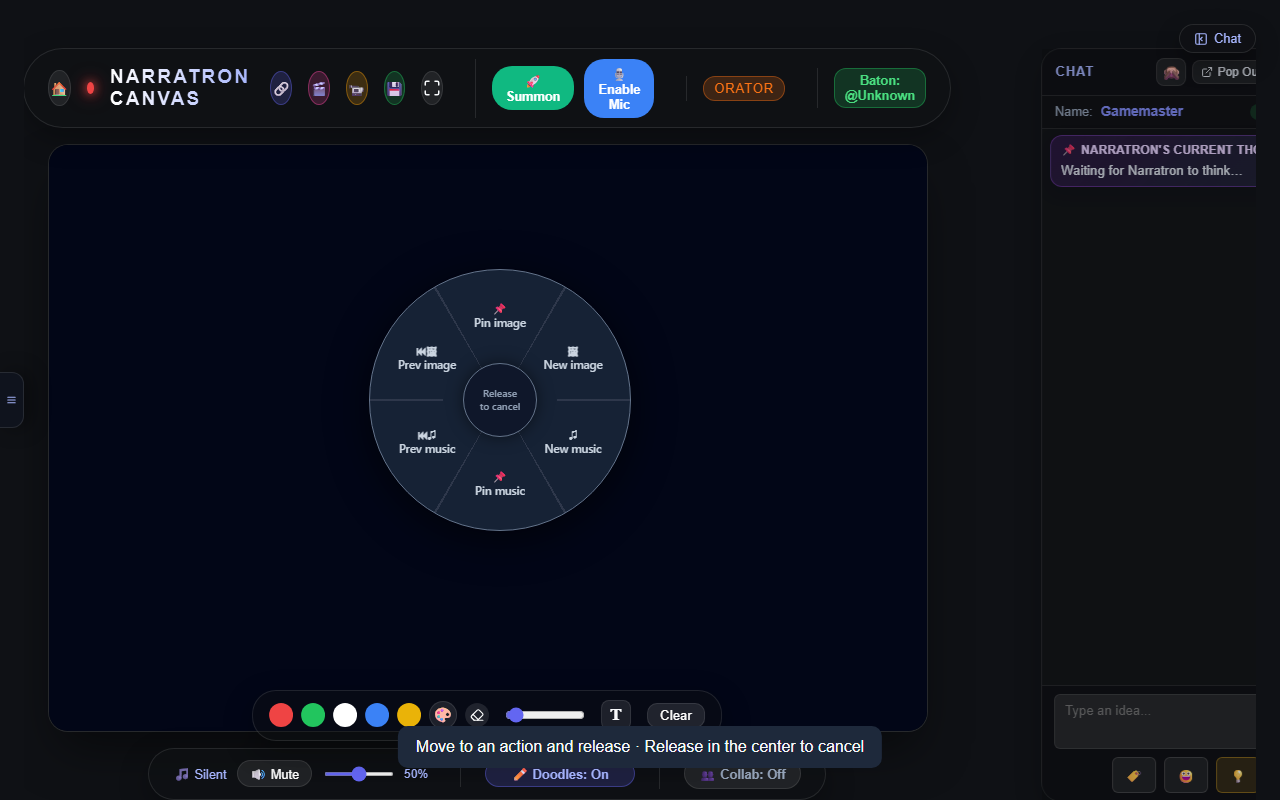
Hold the right mouse button over the canvas to open this wheel. Drag toward a labeled sector and release. Select the screenshot to enlarge it.
Activating the Wheel
- Default Trigger: Hold Right Mouse Button and drag anywhere on the canvas stage.
- Select Action: Drag toward one of the six radial sectors and release.
- Cancel: Release the cursor inside the central deadzone (< 48px from the start position) or press
Escape.
Radial Action Reference
- Up — Pin Image: Lock the current battlemap so subsequent dialogue and scene assistance keep it on screen. Repeat the gesture to unpin it.
- Up-Right — New Image: Request the next room or scene image. This replaces the map once while preserving its pin state.
- Up-Left — Previous Image: Return to the previous scene or battlemap in the session history.
- Down — Pin Music: Retain the current soundtrack during the encounter. Repeat the gesture to unpin it.
- Down-Right — New Music: Request a new background soundtrack, such as a transition from exploration to combat. This changes the music once while preserving its pin state.
- Down-Left — Previous Music: Return to the previous background track.
Customizing Action Wheel Bindings
If you prefer keyboard activation or have a multi-button mouse:
- Open the canvas pullout menu (three dots icon in the top bar).
- Locate the Action Wheel binding button.
- Click Rebind and press your desired mouse button or key combination (e.g.
Ctrl + Shift + K,Middle mouse,Mouse 4). - To disable the wheel entirely or reset back to default, use the buttons located in the pullout menu.
4. Tokens, Minis, & Tactical Markers via Stamps
Narratron's Stamps feature functions as the VTT token and miniature system. Each player and GM can upload and maintain a personal roster of up to 10 stamps, placing and maneuvering them across the canvas.
Configuring Stamp Rosters
- Navigate to your user profile at
/profile. - In the Stamps section, click Choose Image and select a token image. Transparent PNGs work well for portraits and miniatures.
- Enter a recognizable stamp name and click Upload. Repeat for each token in your roster.
Useful stamp assets include:
- Character portraits or circular tokens.
- Monster and NPC miniatures.
- Spell area-of-effect templates, such as fireballs or hazards.
- Status indicators, such as unconscious, stunned, or poisoned.
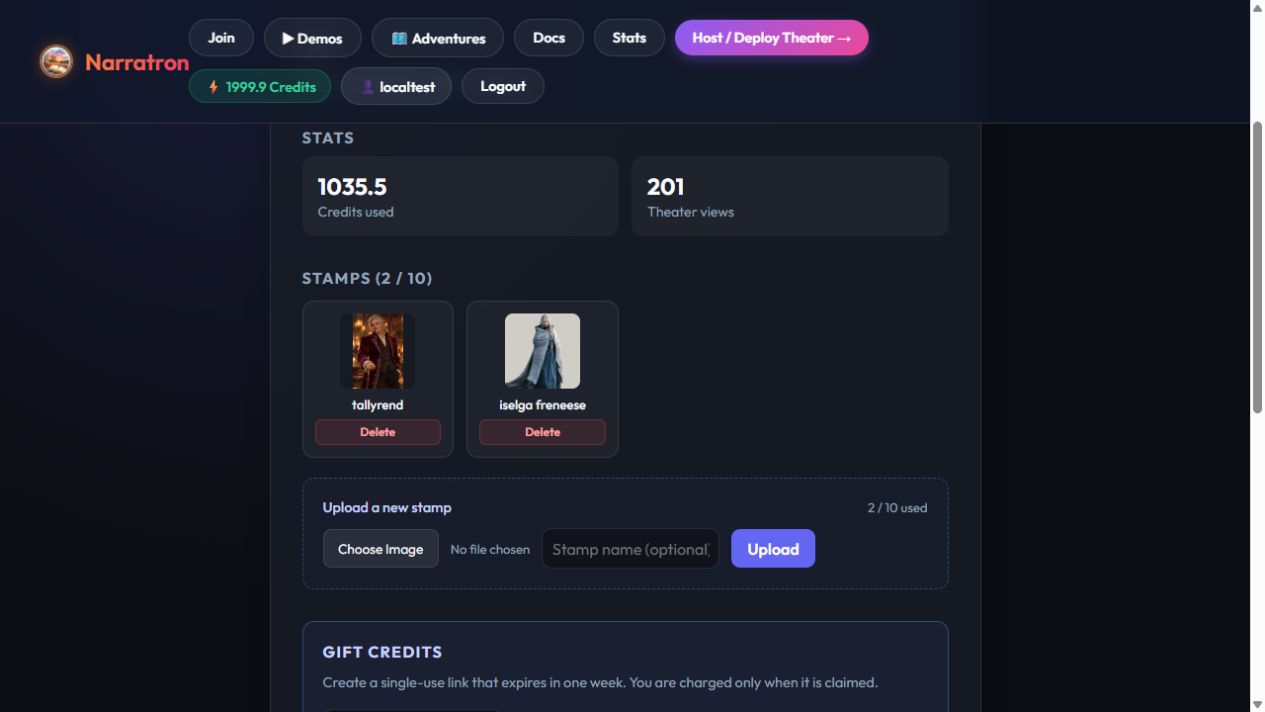
Prepare your roster in your profile before the session. You can save up to 10 stamps.
Opening the Stamp Manager Tray
In the canvas, click the stamp icon (🏷️) in the chat composer input bar. This replaces the chat feed with the Stamp Manager pane, displaying your available stamps in an organized grid along with your current count (e.g., 5/10).
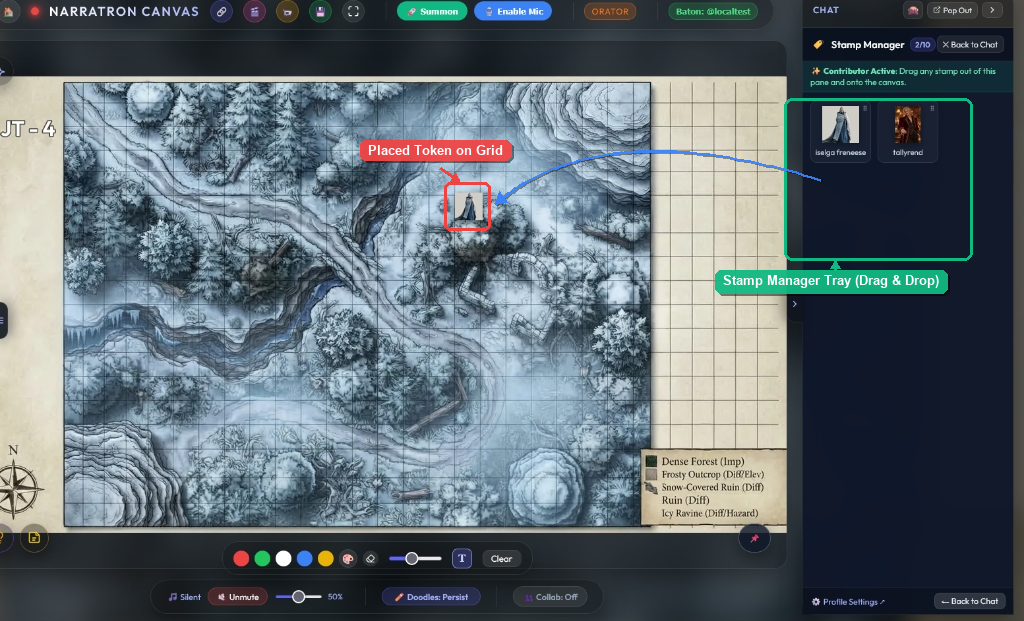
Drag a card from the tray on the right onto the map. The highlighted token shows where the stamp lands.
Placing Tokens on the Battlemap
- Drag and Drop: Click and drag any stamp card from the Stamp Manager tray directly onto the canvas battlemap.
- One-of-a-Kind Enforcement: To prevent clutter and accidental duplication, each user can have at most one placed instance of any given stamp on the canvas. Dragging an existing stamp again moves that token to the new target coordinates.
- Recency Sorting: Stamps automatically sort based on when they were last placed or manipulated. Your most frequently used character tokens and active monsters will always stay at the top of the tray.
Moving, Resizing, and Layering Minis
Once placed on the canvas:
- Move: Click and drag the token to move it to a new grid square or position.
- Resize: Click the token to select it. A glowing border and a bottom-right resize handle will appear. Drag the handle to scale the miniature footprint (e.g. Medium 1x1, Large 2x2, or Huge 3x3).
- Z-Index & Layering: Clicking or moving any token automatically brings it to the front of the stamp layer. This ensures character minis are never trapped underneath large spell effect templates or terrain markers.
- Delete / Remove: Select the token and press
DeleteorBackspaceon your keyboard.
5. Roles, Table Permissions, & Baton Passing
The Theater Owner manages access to the table. The baton identifies the Active Orator, who controls live voice and the Action Wheel. Passing the baton lets a contributor take over scene direction; the owner can reclaim it at any time.
Table Roles Reference
- Theater Owner: Hosts and administers the session, invites contributors, and passes or reclaims the baton. Starts as the Active Orator by default. Can place, move, and resize stamps; microphone and Action Wheel control follow the baton.
- Active Orator (Baton Holder): Can be the owner or an authorized contributor. Holds live microphone access and controls the Action Wheel, image pins, and music pins while steering the scene.
- Contributors (Players / Co-GMs): Place, move, resize, and remove their own stamps, draw annotations, and publish dice rolls to chat. Rolls reach the assistant when Viewer collaboration is ON. Microphone and Action Wheel access become available when they accept the baton.
- Spectators: View the battlemap and token movements and listen to audio. Cannot place or move stamps, publish rolls, or use the Action Wheel.
Baton Passing: Delegating the Orator Role
In many tabletop games, the GM may want a co-GM, guest narrator, or a specific player to take the spotlight (for example, when a player summons a creature, narrates a personalized flashback, or runs a split-party encounter).
- Granting Contributor Access: The Theater Owner first adds table members as Contributors in the theater settings.
- Passing the Baton: The Owner clicks the Baton indicator in the canvas top bar and selects a contributor to pass the baton to.
- Accepting the Baton: The designated contributor receives an on-screen prompt to accept the baton pass. Upon accepting, they immediately become the Active Orator.
- Privileges Transferred: The new Active Orator gains microphone access to speak directly with Narratron's narrative assistant and unlocks the Action Wheel to lock battlemaps or switch music tracks.
- Taking Back the Baton: The Theater Owner always retains executive authority. The Owner can click Take Back Baton at any point to instantaneously restore orator privileges to themselves without interrupting the session.
History view: If any user is viewing canvas history (paged back in time), token manipulation and stamp editing are temporarily disabled on their client until returning to the live canvas view.
6. Complete Session Playbook: Step-by-Step VTT Walkthrough
Here is how an entire tactical encounter unfolds from start to finish:
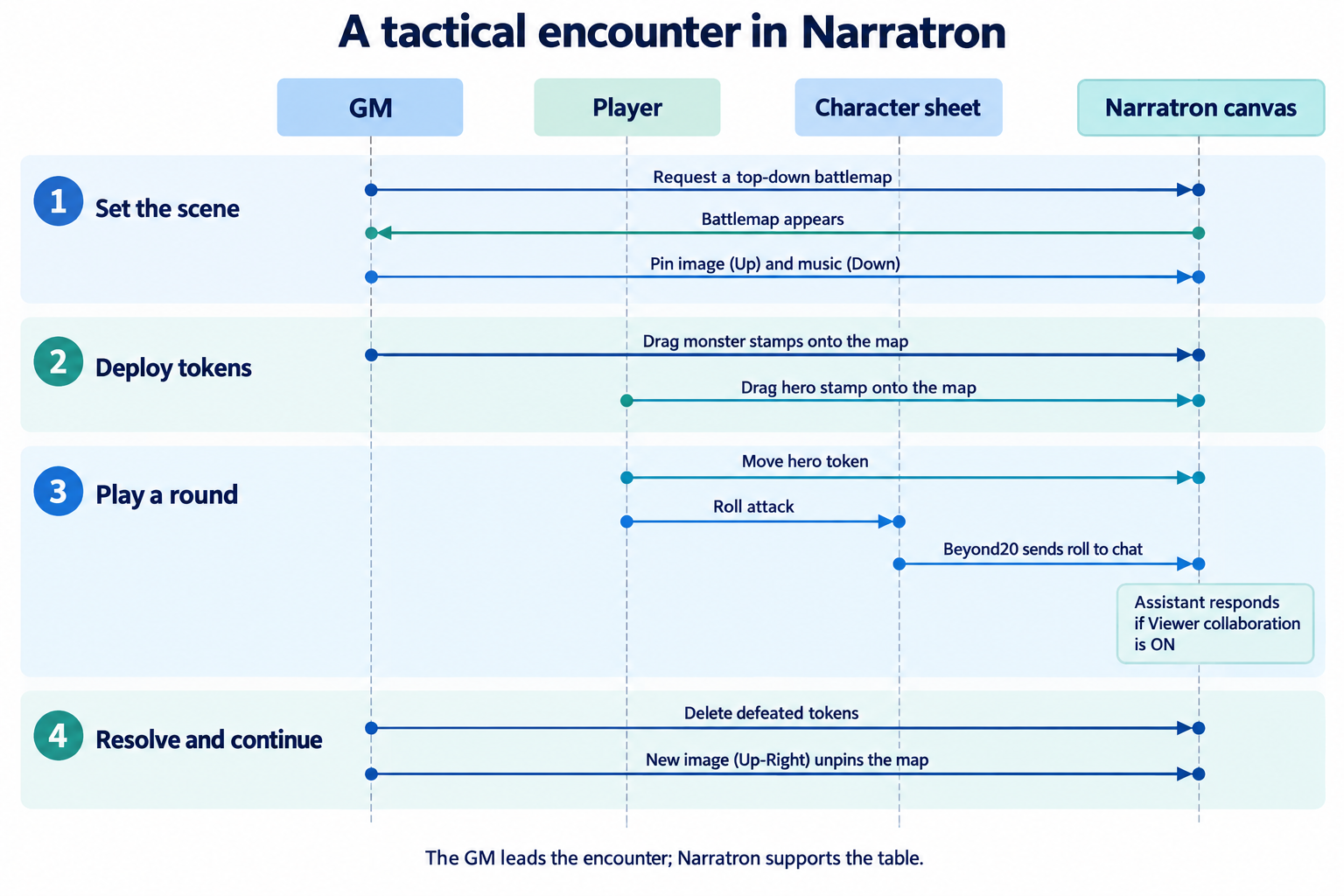
Encounter flow. Select the image to open it at full size; the numbered steps below provide the text walkthrough.
- Step 1: Prep Token Roster: Before game night, players and the GM upload their character tokens and monster minis in
/profile. - Step 2: Conjure the Battlemap: When exploration leads into combat, the GM prompts Narratron for a top-down tactical battlemap with a grid.
- Step 3: Lock the Visuals: The GM executes a quick Right-Click Drag Up on the canvas to Pin Image, ensuring subsequent dialogue or assistant turns do not overwrite the map.
- Step 4: Deploy Minis: The GM opens the stamp tray (
🏷️) and drags out monster tokens. Players open their stamp trays and drop their hero minis onto their starting positions. - Step 5: Lock Battle Audio: The GM uses Right-Click Drag Down on the Action Wheel to Pin Music, holding the tense combat soundtrack in place.
- Step 6: Play Tactical Rounds: Players move their tokens across the grid and roll abilities, attacks, and saves on their external character sheets. Rolls appear in canvas chat. Narratron can offer narrative commentary when Viewer Collaboration is active.
- Step 7: Clear & Transition: When the battle concludes, defeated tokens are deleted with
Backspace, and the GM drags Up-Right on the Action Wheel (New Image) to seamlessly transition back to narrative scene art.
7. Troubleshooting & Best Practices
- My battlemap got replaced when a player talked: Remember to use the Action Wheel (drag Up) or click the Pin button on the canvas as soon as the battlemap is generated. Pinned images will not be replaced by standard story generation.
- Players cannot move their tokens: Ensure the players have been granted Contributor permissions in the theater settings. Spectator accounts cannot move stamps or doodle on the canvas.
- Rolls do not appear in canvas chat: Ensure the player has the Beyond20 extension enabled, has permitted the extension to access the Narratron domain/host, and has both the character sheet and Narratron open in the same browser profile.
- Action Wheel does not open: Verify you are logged in as the theater owner or active orator. By default, right-click must be held and dragged over the canvas surface (not over inputs or dialogs). If you remapped the binding, check your current shortcut in the pullout menu.